Add a Task
Add your first Automated Task to set the radio's Real Time Clock to UTC automatically!
Add your first Task
The simplest way to add tasks to Figaro is to install from the community script library. Let's add the script which was the original impetus for creating Figaro, setting the clock. Open a new tab to the set clock page , and click "Install".

The install button should auto-detect if you're using on a computer or an Android device and provide the correct install link. If it's wrong, just choose the correct option from the dropdown link.
Running your task
Congratulations, you've created your first task.

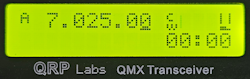
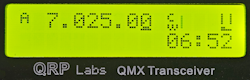
To run it, simply tap the Play button and watch your QMX's clock update to UTC time.
If you wish to edit or delete your task at any time, do so by:
- Android: Swiping the task left.
- Web: Right clicking the task.
Auto-run bonus.
This script has Auto-Run enabled; turn off your QMX, then turn it on again and watch as the time is automatically set (while Figaro is running), without needing to tap the Play button!
Well Done
Being able to auto set the clock was the inspiration behind developing Figaro in the first place, so even if you never do anything more with it, I trust you'll find it a valuable addition to your QMX.
Once you start exploring the possibilities, however, you'll soon discover how powerfull automation with the QMX is, limited by only your imagination. Be sure to check out the other automated scripts to either run yourself, or as inspiration for developing your own.
You know know how to install scripts published to the Script Library. If you're interested in writing your own scripts, continue with the tutorial.